
What Is Conditional Access App Control?
Monitor and control user sessions in real time for cloud apps. You can:
- Block downloads
- Prevent copy/paste
- Monitor risky behavior
- Enforce read-only access
It works via a reverse proxy, so it only applies to web sessions—not desktop or mobile apps.
- Why Conditional Access App Control?
Enables real-time monitoring and control of user sessions in cloud apps—especially useful for unmanaged devices and risky scenarios.
Cloud Apps Policies Concepts
- Access Policies
Control whether users can access an app based on conditions (e.g., device compliance, location). - Session Policies
Allow access but monitor and restrict actions during the session (e.g., block downloads, copy/paste). - Reverse Proxy vs. In-Browser Protection
- Reverse proxy: reroutes traffic through Defender for Cloud Apps
- In-browser protection: native enforcement in Microsoft Edge for Business
How It Works
- User signs into a cloud app (e.g., SharePoint)
- Conditional Access policy routes session through Defender for Cloud Apps
- Defender applies access/session policies based on:
- Device compliance
- App type
- User identity
- Activity type
Policy Types & Examples
| Policy Type | Example |
|---|---|
| Access Policy | Block Dropbox access from unmanaged devices |
| Session Policy | Block downloads of sensitive files from OneDrive |
| Malware Detection | Prevent upload of infected files to SharePoint |
| Data Classification | Apply sensitivity labels to downloaded documents |
Example : Real-World Scenario
User: Sarah, marketing manager
Device: Personal laptop (unmanaged)
Browser: Microsoft Edge for Business (work profile)
Policy: Block downloads from SharePoint
Result:
- Sarah can view files
- Downloads are blocked
- No reverse proxy used—native enforcement
Determine how your app connects to Microsoft Entra
Microsoft Entra ID apps: These are automatically onboarded—no extra setup needed.
- Microsoft 365 (Outlook, SharePoint, Teams)
- Azure DevOps
- Dynamics 365
- ServiceNow (via gallery integration)
- Salesforce (via gallery integration)
- Slack (via gallery integration)
Non-Microsoft IdP(Identity Provider)apps: These require manual configuration
- Custom-built internal apps (e.g., legacy HR systems)
- Third-party SaaS apps not in the Microsoft gallery
- Apps using Okta or PingFederate for authentication
- On-premises apps using ADFS or other federation services
Step-by-Step Deployment Guide
1. Check Prerequisites
- You need Microsoft Defender for Cloud Apps licensed
- Your users must be in Microsoft Entra ID (formerly Azure AD)
- Use supported browsers (Edge, Chrome, Firefox)
- Ensure firewall allows traffic from Microsoft’s IP ranges
2. Create a Conditional Access Policy Routes traffic through Defender for Cloud Apps proxy
Microsoft Entra admin center:
- Navigate to Security > Conditional Access
- Create a new policy:
- Users: Select who the policy applies to
- Cloud apps: Choose apps office 365
- Conditions: Client apps Browser filters
- Access controls: Choose Conditional Access App Control Monitor only
- Enable policy ON
We initially set the Conditional Access App Control mode to ‘Monitor only‘ during the first phase of implementation to observe user behavior, and later transitioned to ‘Use custom policy‘ to enforce specific session controls policy
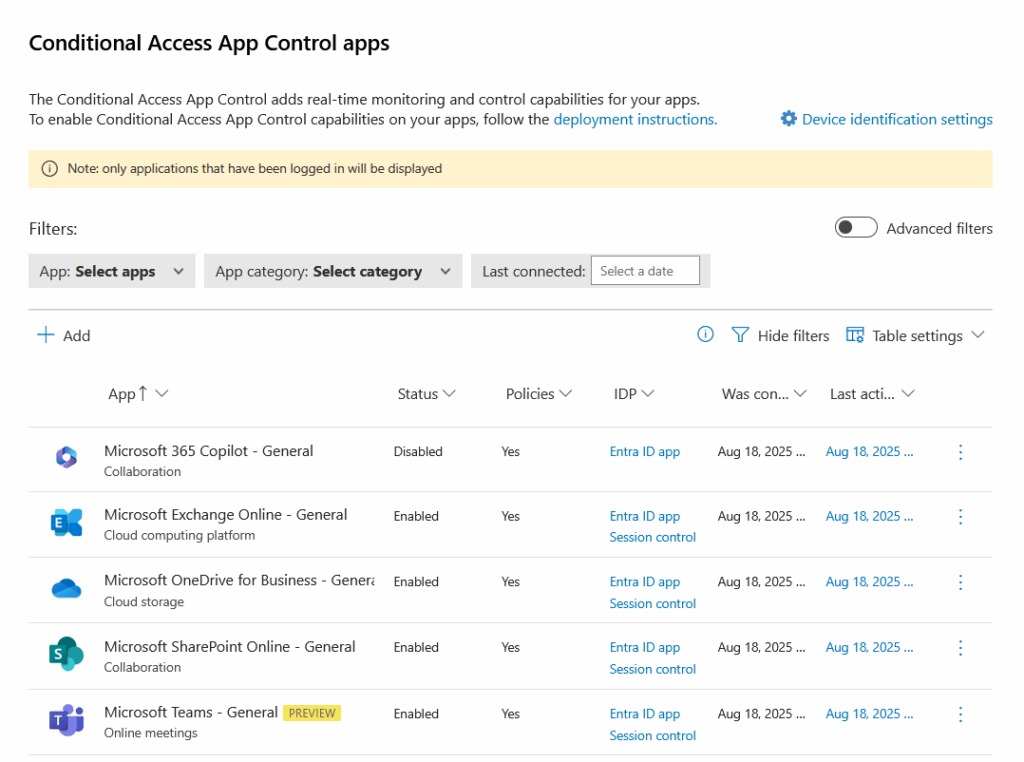
3. Verify apps display Condition access App control Defender Portal
- First Login all the office 365 apps (Sharepoint,Outlook..)
- Navigate to Defender Portal > Setting > Cloud apps
- Connected Apps > Conditional Access App Control apps , Verify apps display Condition access App control
4. Enable App Control in Defender for Cloud Apps
- Go to Defender for Cloud Apps > Policy Mangemnt
- Navigate to Conditional Access
- Select Policies Session/Access :
- Access policies: Example block access based on conditions
- Session policies: Example control actions like download, cut/copy, etc.
4. Test the Setup
- Use a test user and sign in via browser
- Access the app (e.g., OneDrive)
- Try downloading a file—see if the policy blocks it

5. Monitor & Tune
- Use the Activity log in Defender for Cloud Apps
- Adjust policies based on user behavior and risk
Benefit
- ✅ Real-time protection
- ✅ Seamless user experience
- ✅ Granular control over cloud sessions
- ✅ Supports hybrid and BYOD environments