
- Types of Policies in Defender for Cloud Apps
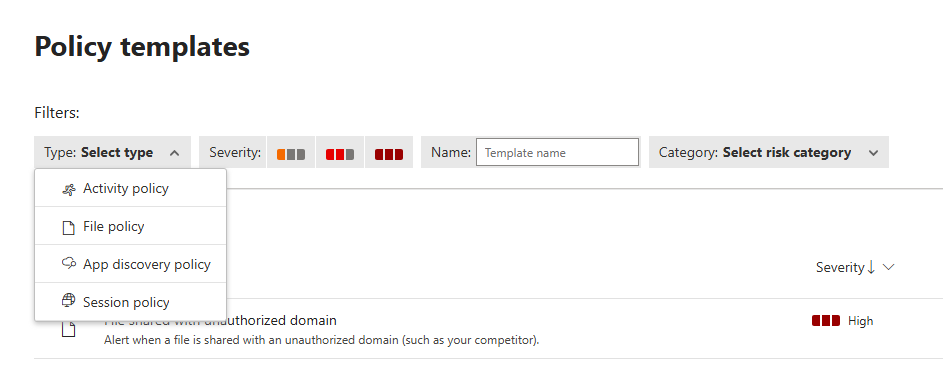
Activity Policies
These monitor user and admin activities across connected cloud apps.
Purpose: Detect risky or suspicious behavior.
Examples
Multiple failed login attempts
Mass downloads or deletions
Access from risky IP addresses
Actions: Send alerts, suspend users, or require password reset.
App Discovery Policies
These help identify shadow IT—apps used without IT approval.
Purpose: Discover and evaluate unsanctioned cloud apps.
Examples:
High usage of filesharing apps like Dropbox or WeTransfer
Apps with low compliance scores
Actions: Alert admins, mark apps as sanctioned/unsanctioned.
Session Policies
These control user sessions in real time using Conditional Access App Control.
Purpose: Enforce access rules during live sessions.
Examples:
Block downloads of sensitive files
Monitor session activity for risky users
Actions: Block, warn, or monitor actions in real time.
File Policies
These analyze files stored in cloud apps for sensitive content or unusual behavior.
Purpose: Prevent data leaks and ensure compliance.
Examples:
Sharing of files containing PII or financial data
Malwareinfected files uploaded to OneDrive
Actions: Quarantine files, notify users, or revoke sharing.
Exploring Policy Templates
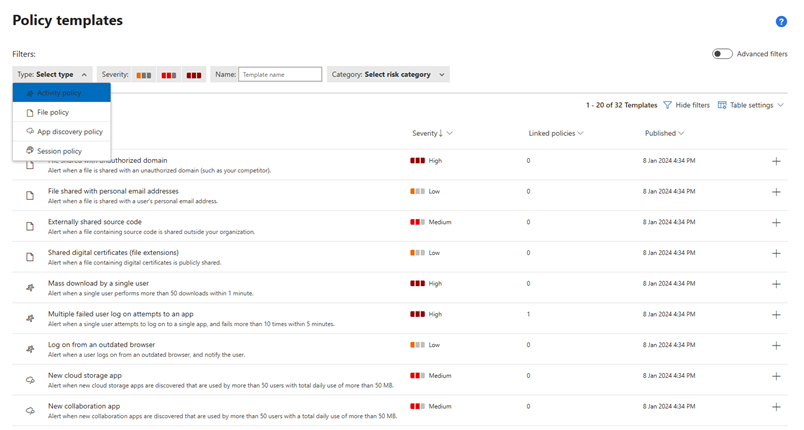
Predefined templates provided by Microsoft.
How to customize templates to fit your organization’s needs.
Examples
Detect ransomware activity
Monitor mass downloads
Track login failures
Creating Policies
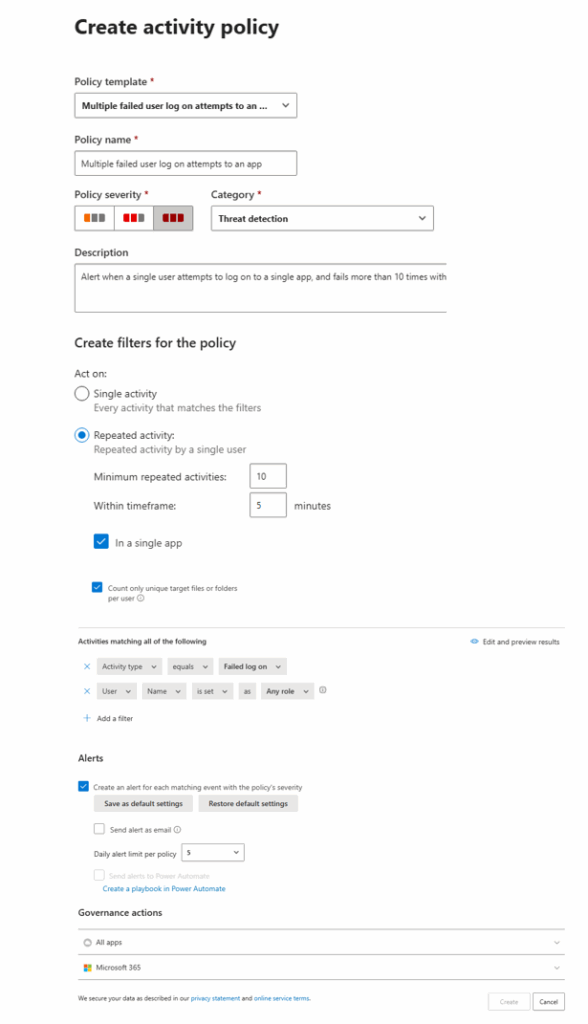
Step-by-Step: Creating a Policy Template
1. Policy Template Selection
- What it is: A dropdown menu to choose a predefined template.
- Example shown: Multiple failed user log on attempts to an app
- Why it matters: Templates save time and ensure best practices are followed.
2. Policy Name
- What it is: A field to name your policy.
- Example shown: Multiple failed user log on attempts to an app
- Tip: Use clear, descriptive names so you can easily identify the policy later.
3. Policy Severity
- What it is: Choose how critical the policy is.
- Options:
- High
- Medium (selected in screenshot)
- Low
- Why it matters: Severity affects alert prioritization and response urgency.
4. Category
- What it is: Classify the policy under a relevant category.
- Example shown: Threat detection
- Other categories: Information protection, Compliance, etc.
5. Description
- What it is: A detailed explanation of what the policy does.
- Example shown: Alert when a single user attempts to log on to a single app, and fails more than 10 times within 5 minutes.
- Tip: Be specific so others understand the policy’s intent.
6. Create Filters for the policy
Single Activity
- Definition: The policy triggers every time an activity matches the filter conditions.
- Use Case: Best for detecting isolated incidents.
- Example:
- You set a policy to alert when a user downloads a file from SharePoint.
- If a user downloads 5 files, you get 5 separate alerts—one for each download.
Pros:
- Immediate detection
- Useful for sensitive actions (e.g., accessing confidential files)
Cons:
- Can generate too many alerts if the activity is frequent
- May lead to alert fatigue
Repeated Activity
Definition: The policy triggers only when a pattern of behavior occurs multiple times within a defined timeframe.
- Use Case: Ideal for detecting suspicious trends or attacks.
- Example:
- You set a policy to alert when a user fails to log in more than 10 times within 5 minutes.
- If a user fails 12 times in 5 minutes, you get one alert for the repeated pattern.
Pros:
- Reduces noise by focusing on patterns
- Great for detecting brute-force attacks, mass downloads, or persistent threats
Cons:
- Might miss isolated incidents unless thresholds are carefully set
How to Choose Between Them
| Scenario | Best Option | Why |
| Detecting a single sensitive file download | Single Activity | Immediate alert for each event |
| Monitoring login failures or mass actions | Repeated Activity | Captures patterns, avoids alert overload |
| Watching for unusual access from risky IPs | Repeated Activity | Helps identify persistent threats |
Example in Action
Let’s say you’re monitoring failed login attempts:
- Single Activity: You get an alert every time a user fails to log in.
- Repeated Activity: You get an alert only if the user fails more than 10 times within 5 minutes.
This makes repeated activity perfect for security incident detection, while single activity is better for compliance monitoring or sensitive actions.
Thanks for sharing the image, Rijo! Here’s what those two selected options mean in the context of your policy filters:
In a Single App
- Meaning: The policy will only trigger if the repeated activity occurs within the same application.
- Example: If a user downloads multiple files from SharePoint, the policy will trigger. But if they download some from SharePoint and others from OneDrive, it won’t count as a repeated activity.
Why it matters: This helps narrow the scope to specific apps, making detection more precise and reducing false positives across platforms.
Count Only Unique Target Files or Folders per User
- Meaning: The policy will only count distinct files or folders accessed by a user, not repeated access to the same item.
- Example: If a user accesses FileA five times, it counts as one unique access.
- if they access FileA, FileB, and FileC, it counts as three.(FileA,B,C different so total count tree)
Why it matters: This prevents inflated activity counts from users repeatedly accessing the same file, focusing instead on breadth of access—which is often more suspicious.
Combined Effect
With both options selected, your policy is tuned to:
- Detect repeated access to different files/folders
- Within one specific app
- By the same user
7. Activities Matching All of the Following
These filters define what kind of activity will trigger the policy.
8. Alerts
This section controls how and when alerts are triggered.
| Setting | Description | Example |
| ✅ Create alert for each matching event | Triggers an alert when conditions are met | Jane downloads 6 unique files from a personal device |
| ❌ Send alerts as email | Not enabled here, but could notify security team | |
| 🔢 Daily alert limit = 5 | Limits alerts to 5 per day per policy | Prevents alert overload |
| ❌ Send to Power Automate | Not enabled, but could trigger automated actions |
9. Governance Actions
This defines where the policy applies.
| Option | Description | Example |
| Microsoft 365 | Applies to apps like OneDrive, SharePoint, Teams | User downloads files from OneDrive |
| All apps | Not selected, so third-party apps are excluded |