
What Is In-Browser Protection?
In-browser protection is a feature of Microsoft Defender for Cloud Apps that enforces session policies directly within Microsoft Edge for Business, without relying on a reverse proxy. It enhances security while improving performance and user experience.
Why It Matters
- No reverse proxy required for supported scenarios
- Faster performance and fewer compatibility issues
- Seamless enforcement of security policies in the browser
- Ideal for BYOD (Bring Your Own Device) environments
How It Works
- Users sign into Microsoft Edge for Business using their work profile (linked to Microsoft Entra ID)
- Defender for Cloud Apps applies session policies natively in the browser
- Policies like blocking downloads, copy/paste, and printing are enforced without rerouting traffic
Example Scenario
User: Sarah, a marketing manager
Device: Personal laptop (unmanaged)
Browser: Microsoft Edge for Business (work profile active)
Action: Accesses SharePoint Online to view confidential files
Policy: Block downloads and monitor copy/paste
Result:
- Sarah can view documents
- Attempts to download or copy content are blocked
- No reverse proxy is used—performance is smooth and secure
What If You Don’t Use Edge for Business?
If a user accesses corporate resources using:
- A non-supported browser (e.g., Chrome, Safari)
- Edge without the work profile
- Or policies that require deeper inspection (e.g., DLP scanning)
Then:
- Defender falls back to using a reverse proxy
- Performance may be slower
- Some app features may break or behave differently
Access Comparison
| Scenario | Access to Resources | Policy Enforcement Method | Performance Impact |
|---|---|---|---|
| Edge for Business + Entra ID Profile | Yes | In-browser protection (native) | Fast & seamless |
| Other browsers / no work profile | Yes | Reverse proxy (external routing) | Potential slowdown |
Key Takeaways
- You can access corporate resources in both cases
- Using Edge for Business with your Entra ID profile unlocks faster, more secure, and more reliable protection
- It’s especially beneficial for unmanaged devices and hybrid work setups
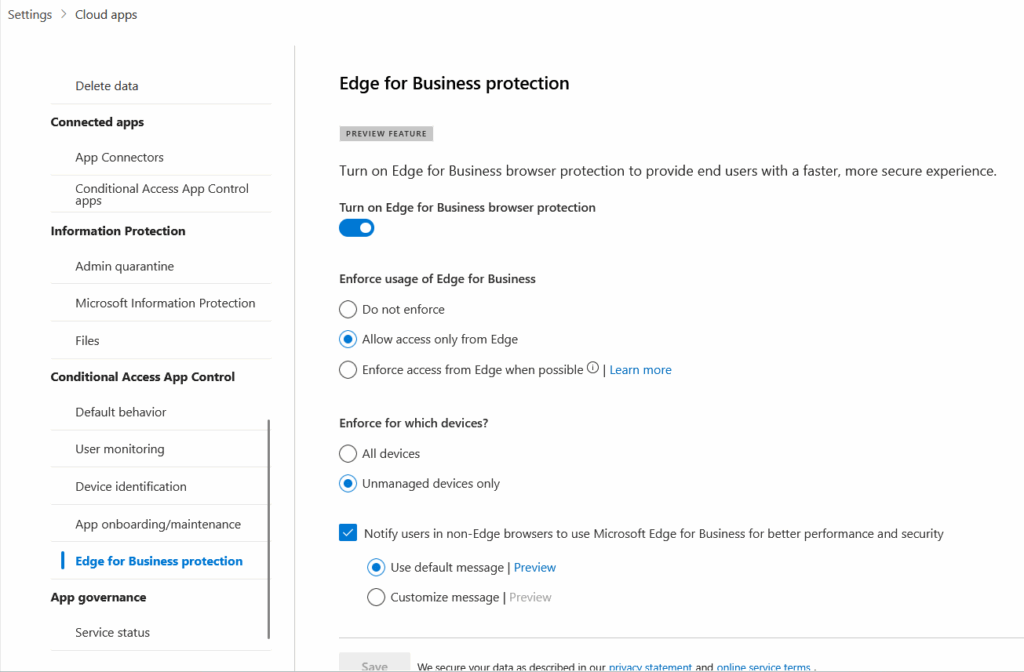
Edge for Business Protection Options Explained
1. Enforce Usage of Edge for Business
| Option | What It Does | When to Use |
|---|---|---|
| Do not enforce | Users can access apps from any browser | Use for monitoring only or during testing phase |
| Allow access only from Edge | Blocks access from all other browsers | Use when you want strict control and guaranteed in-browser protection |
| Enforce access from Edge when possible | Encourages Edge use but allows fallback to proxy for other browsers | Best for hybrid environments or gradual rollout |
2. Enforce for Which Devices?
| Option | What It Does | When to Use |
|---|---|---|
| All devices | Applies protection to both managed and unmanaged devices | Use for full coverage across your organization |
| Unmanaged devices only | Targets BYOD or personal devices | Ideal for protecting corporate data on personal laptops or home PCs |
3. Notify Users in Non-Edge Browsers
- ✅ Enable this if you want users to see a message suggesting they switch to Edge for Business for better performance and security.
- Great for user education and soft enforcement before going strict.
Recommended Setup for Most Organizations
If you’re securing access from unmanaged devices and want to balance control with flexibility:
- ✅ Turn on Edge for Business protection
- ✅ Set “Enforce access from Edge when possible”
- ✅ Apply to “Unmanaged devices only”
- ✅ Enable notification for non-Edge browsers
This setup encourages secure behavior without breaking access for users who aren’t yet using Edge.
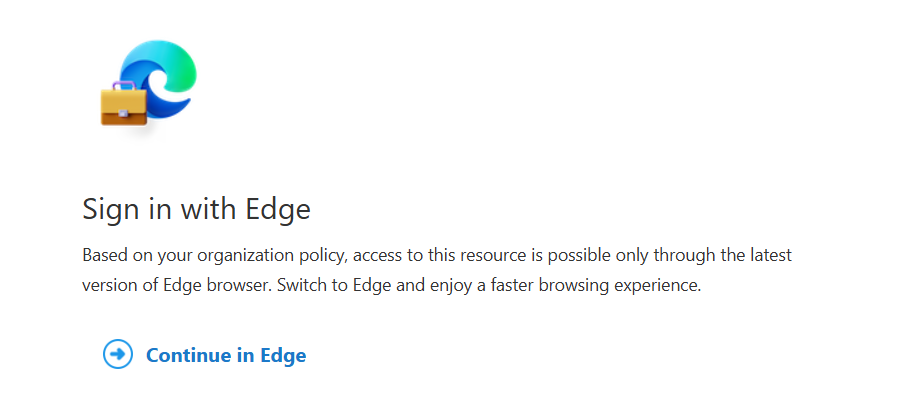
This Output result for after Edge Protection